Writing scripts
Write in the editor on the left, and check the prompter preview on the right as you type. Everything saves automatically.
Start a new script
- In the Scripts library, click + New script. A blank script called "Untitled script" opens.
- Click the title at the top and type a name.
- Click in the editor and start writing. The preview on the right updates as you type.
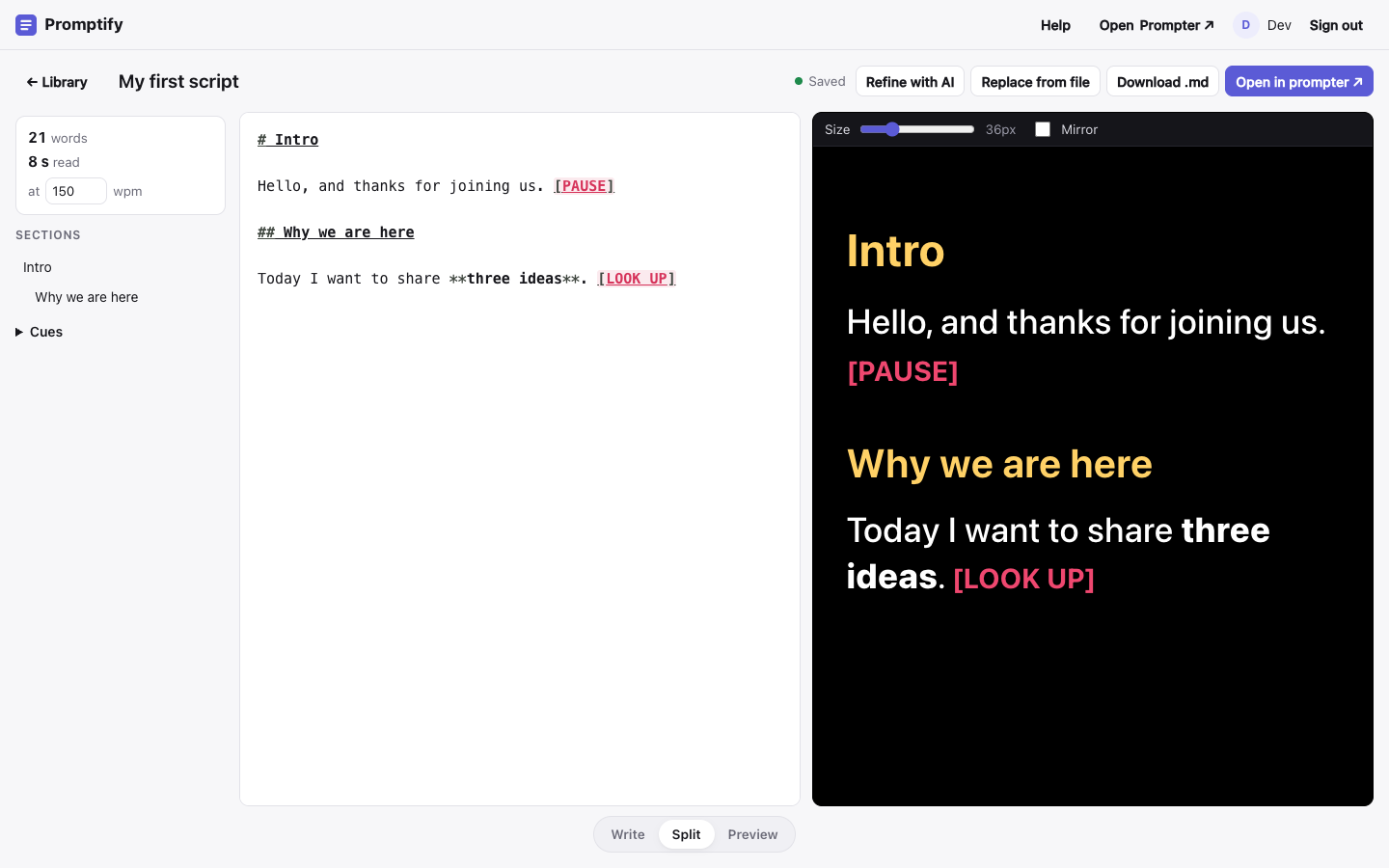
To open an existing script, click its title in the library. Use Search titles… to filter a long list.
The editor page
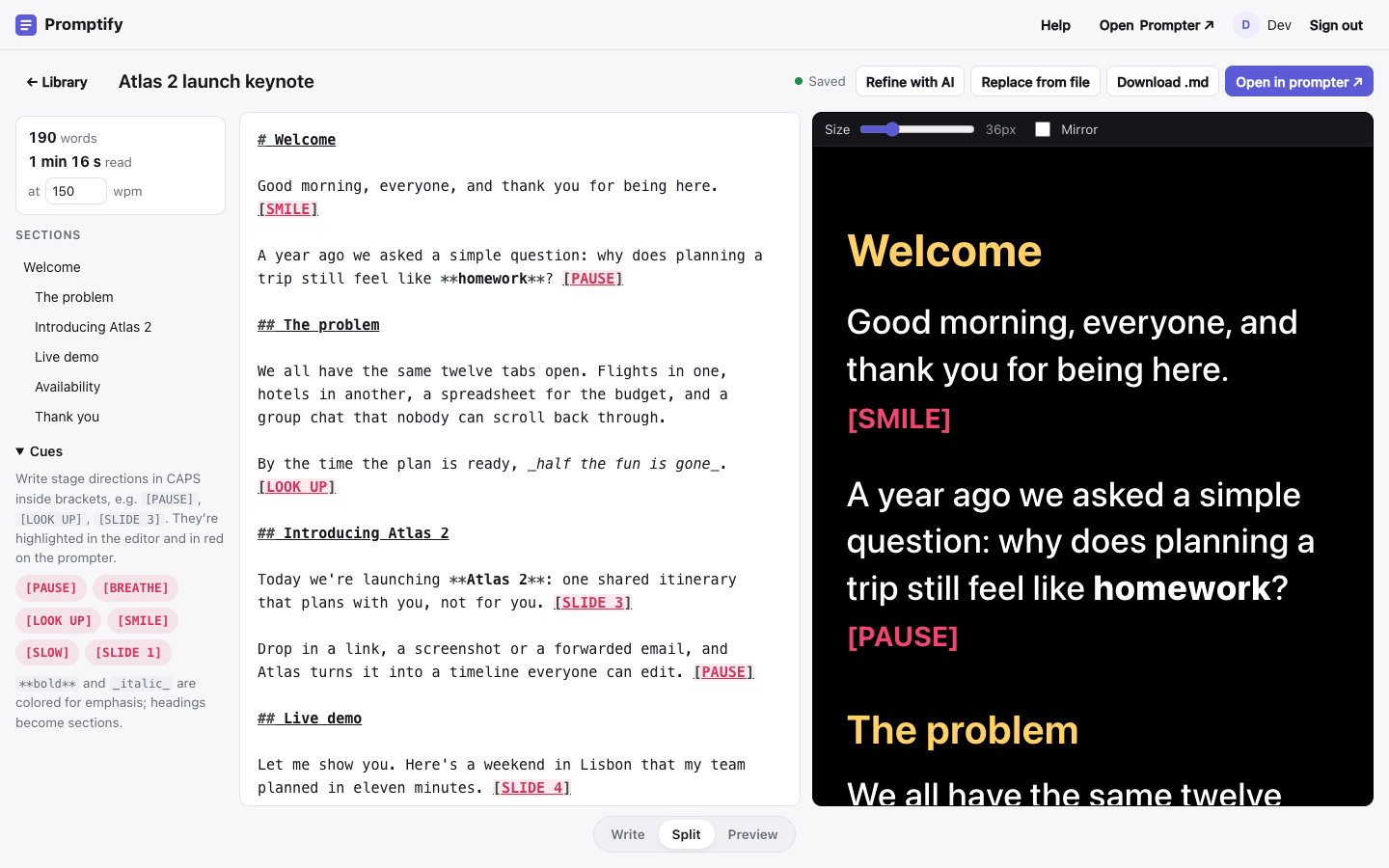
- Left column: word count, estimated read time (change the reading speed in wpm), the list of Sections, and the Cues help.
- Middle: the Markdown editor.
- Right: the prompter preview, white on black as on the iPad. Use Size to try a font size and Mirror to check a mirrored layout. These preview settings don't change the iPad.
- Bottom: switch the layout between Write, Split and Preview.
The toolbar has ← Library, the title, the save status, and three buttons.

- Replace from file swaps the script text for a file's contents. See Importing scripts.
- Download .md saves the script as a Markdown file.
- Open in prompter ↗ opens this script in the prompter in a new tab.
Formatting
Scripts are Markdown. The few things that matter on a prompter:
| You type | On the prompter |
|---|---|
# Welcome, ## The problem |
A section heading, in yellow. Every heading is a jump target. |
**three releases** |
Bold, for emphasis. |
_half the fun_ |
Italic, in light blue. |
[PAUSE], [LOOK UP], [SLIDE 3] |
A cue, in red. |
| A blank line | A new paragraph. A single line break is kept as a line break. |
Cues (stage directions)
- Write a cue in CAPITALS inside square brackets:
[PAUSE],[BREATHE],[LOOK UP],[SMILE],[SLOW],[SLIDE 3]. Letters, digits and spaces work, up to about 40 characters. - Or open Cues in the left column and click a chip to insert it at the cursor.
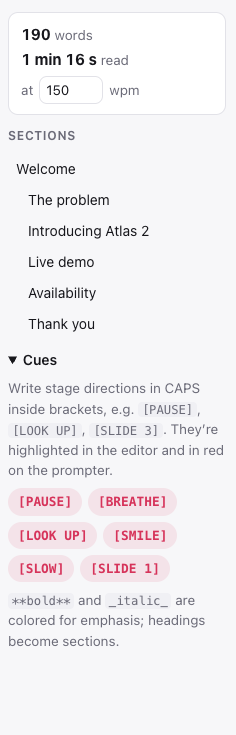
Cues are highlighted in the editor and shown in red, slightly smaller, on the prompter. Lowercase text in brackets, like [note], is left as ordinary text.
Headings become sections
Every heading (#, ##, ### …) becomes a section:
- In the editor, it appears under Sections in the left column. Click it to jump there in both the editor and the preview.
- On the iPad, it appears in the section menu, and ⏪ / ⏩ jump between sections.
- On the remote, it appears in the Sections list.
Tip: start each script with a # heading, and use ## for each part of the talk.
Autosave
- Changes save about a second after you stop typing. The status next to the title shows Unsaved changes, Saving…, then Saved.
- Press ⌘ S (or Ctrl S) to save right away.
- If you lose your connection, the status shows Offline — will retry, and your changes save when you're back online. Keep the tab open until it says Saved.
- If a save fails for another reason, the status shows Save failed with a Retry link.
Conflicts
If the same script was saved somewhere else since you opened it (another tab, another computer, or a re-import), the editor stops saving and shows a banner:

- Load latest throws away your unsaved edits and loads the other version.
- Overwrite with mine saves your version over the other one.
If you're not sure, copy your recent edits somewhere safe first, then click Load latest.