The iPad prompter
The prompter is a web app that you install on the iPad. It keeps a copy of your scripts, so it works with no internet once it has synced.
Install it
- On the iPad, open Safari and go to your Promptify address followed by
/p/(for examplehttps://promptify.example.com/p/). - Sign in with your Google account when asked.
- Tap Share (the square with an arrow), then Add to Home Screen, then Add.
- Open Promptify from the Home Screen. From now on, always start it from there: it opens full screen, and it is the copy that keeps your scripts offline.
The installed app has its own sign-in, separate from Safari. If it says you're signed out, tap Sign in inside the app. See Troubleshooting.
The library and sync
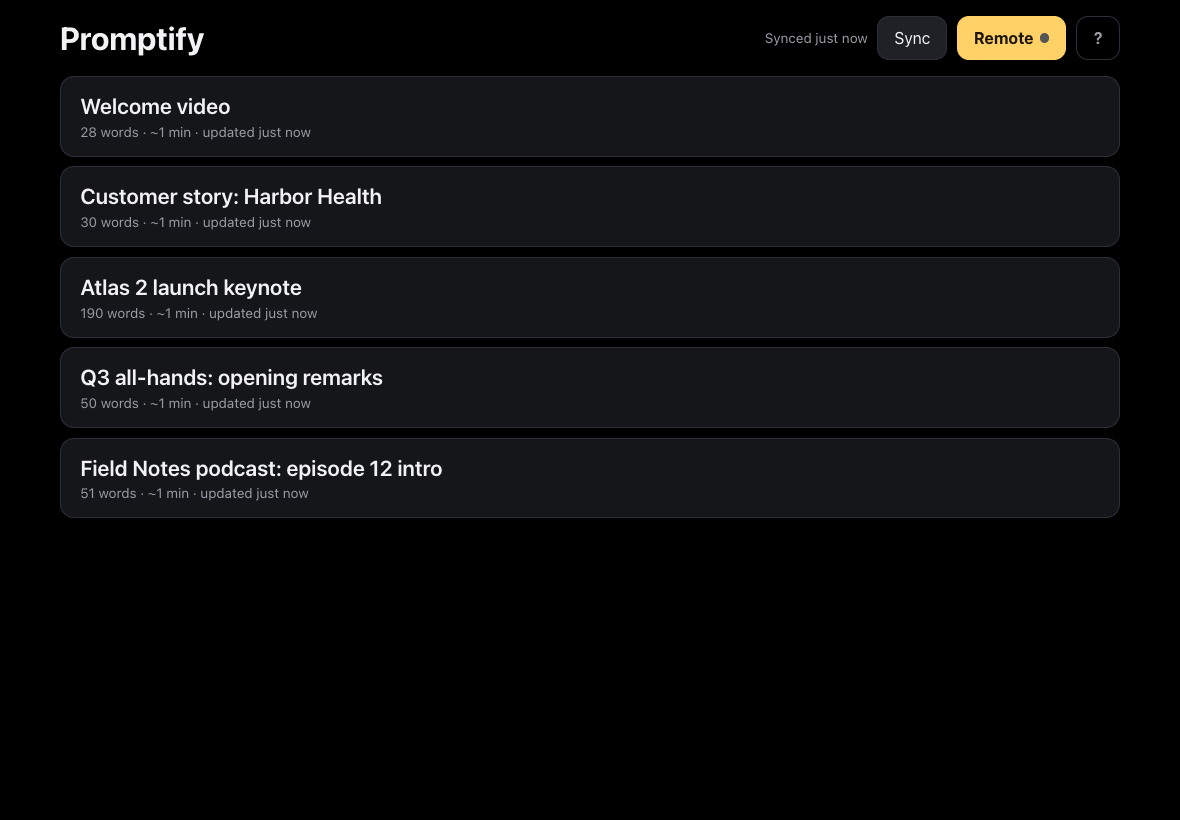
- The library lists every synced script with its word count and an estimated reading time.
- It syncs by itself when the app opens, when you come back to it, and when the iPad gets back online. Tap Sync to sync right now.
- Synced … shows when the last sync finished. An Offline badge means there's no connection: every script already listed still works.
- Scripts deleted in the editor disappear from the iPad on the next sync.
Before you go somewhere without Wi-Fi, open the app once on a good connection and check that Synced just now appears.
Play a script
Tap a script in the library. It opens paused, with the controls showing.
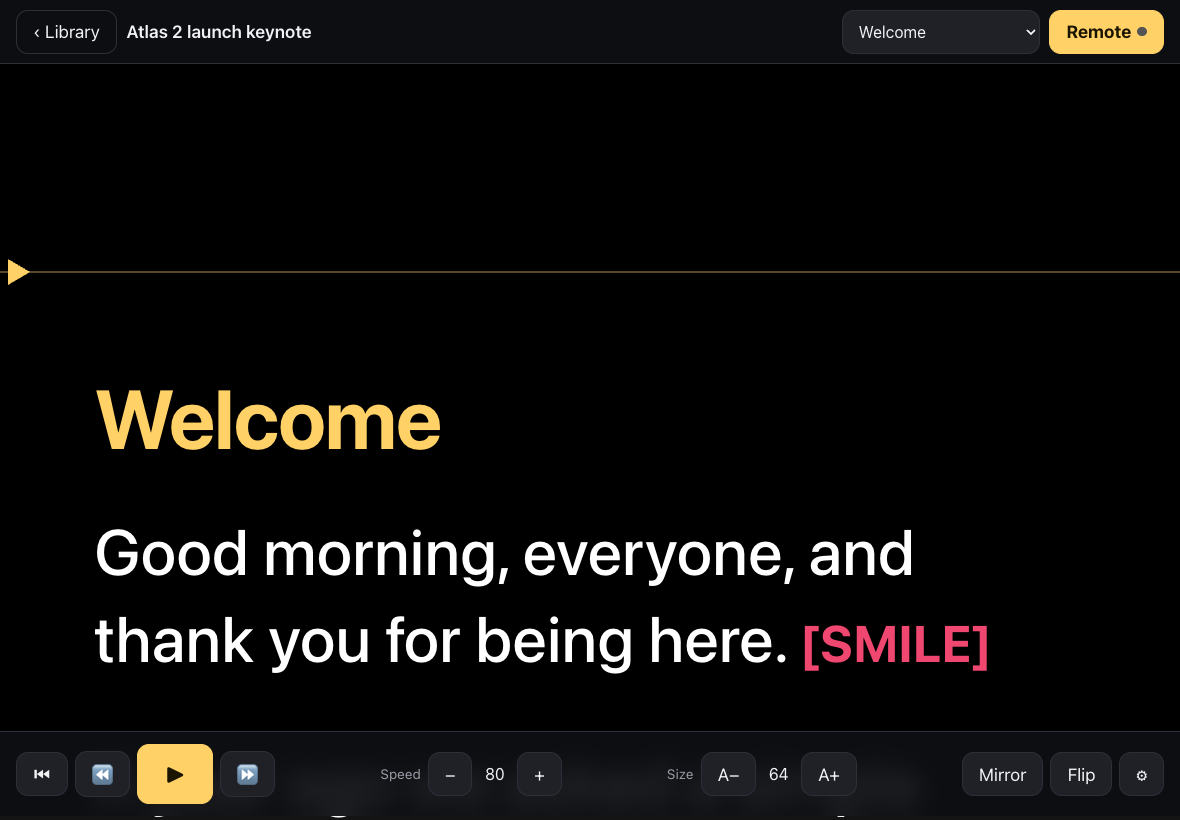
Tap ▶. A short countdown runs, then the text scrolls.
Tap anywhere on the text to show or hide the controls. While playing, they hide by themselves after a few seconds.
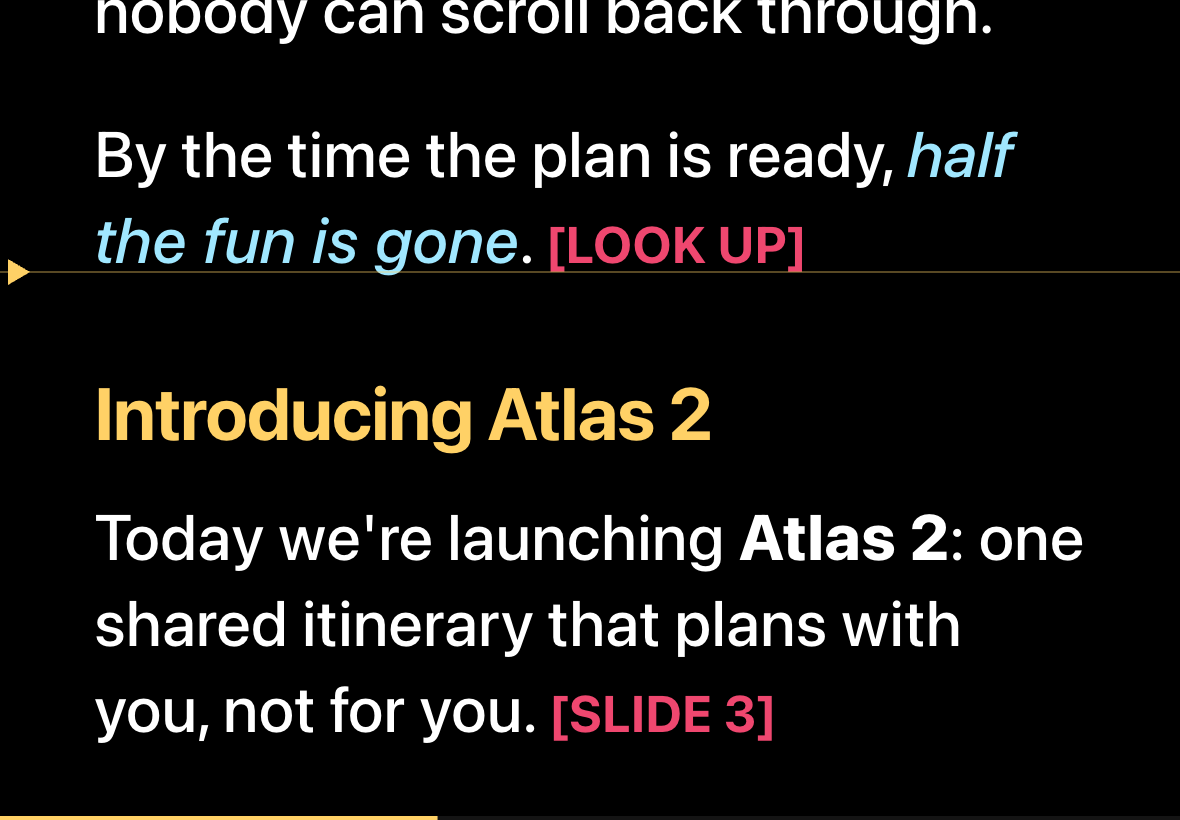
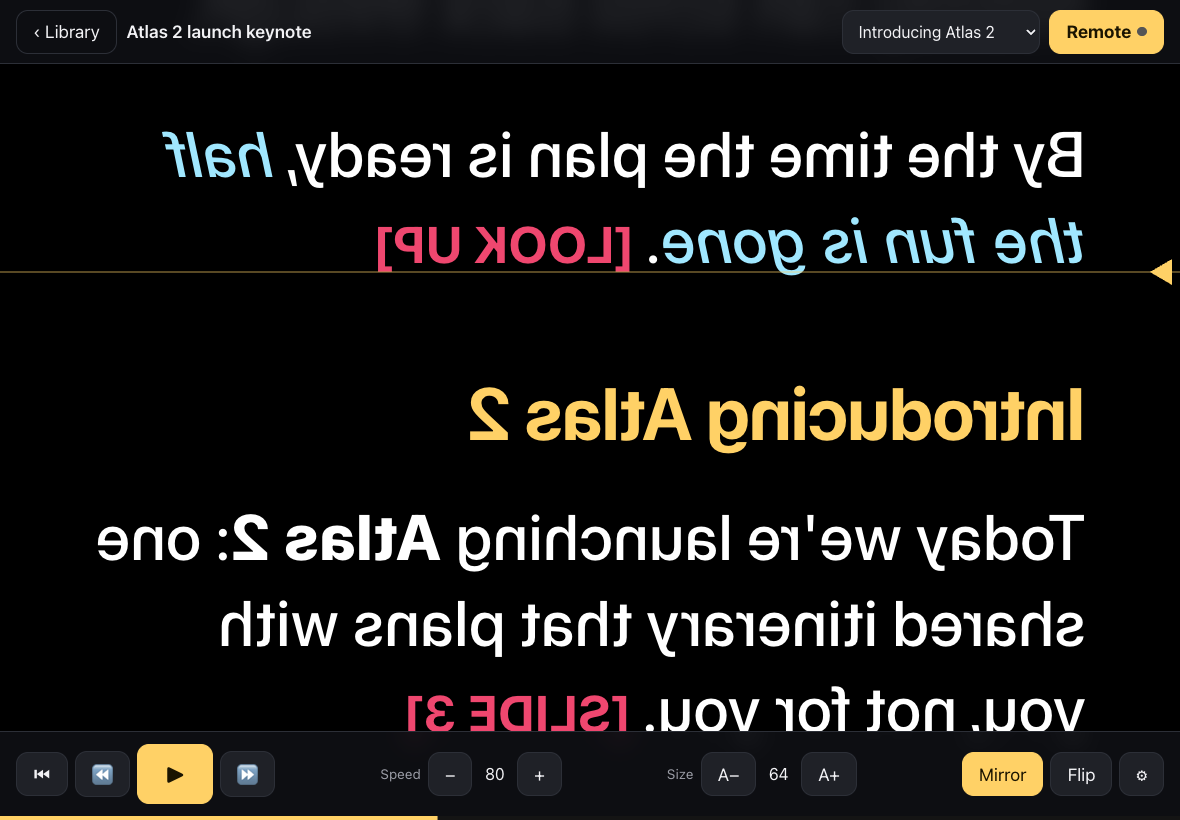
Read the line next to the yellow arrow: that's the reading line. The thin bar at the very bottom shows how far through the script you are.
The controls, left to right:
| Control | What it does |
|---|---|
| ‹ Library | Back to the script list. |
| Section menu (top) | Jump to a heading. |
| Remote | Pair a phone as a remote. The dot turns green when one is connected. See The phone remote. |
| ⏮ | Back to the top. |
| ⏪ / ⏩ | Previous / next section. |
| ▶ / ❚❚ | Play / pause. |
| Speed − + | Scroll speed, in steps of 10. |
| Size A− A+ | Text size. |
| Mirror | Flip left to right, for beam-splitter glass. |
| Flip | Flip top to bottom, for rigs whose glass also reverses the image vertically. |
| ⚙︎ | More settings. |
The iPad's screen stays on while the script is playing and while a remote is connected.
Settings
Tap ⚙︎ to open the settings panel.
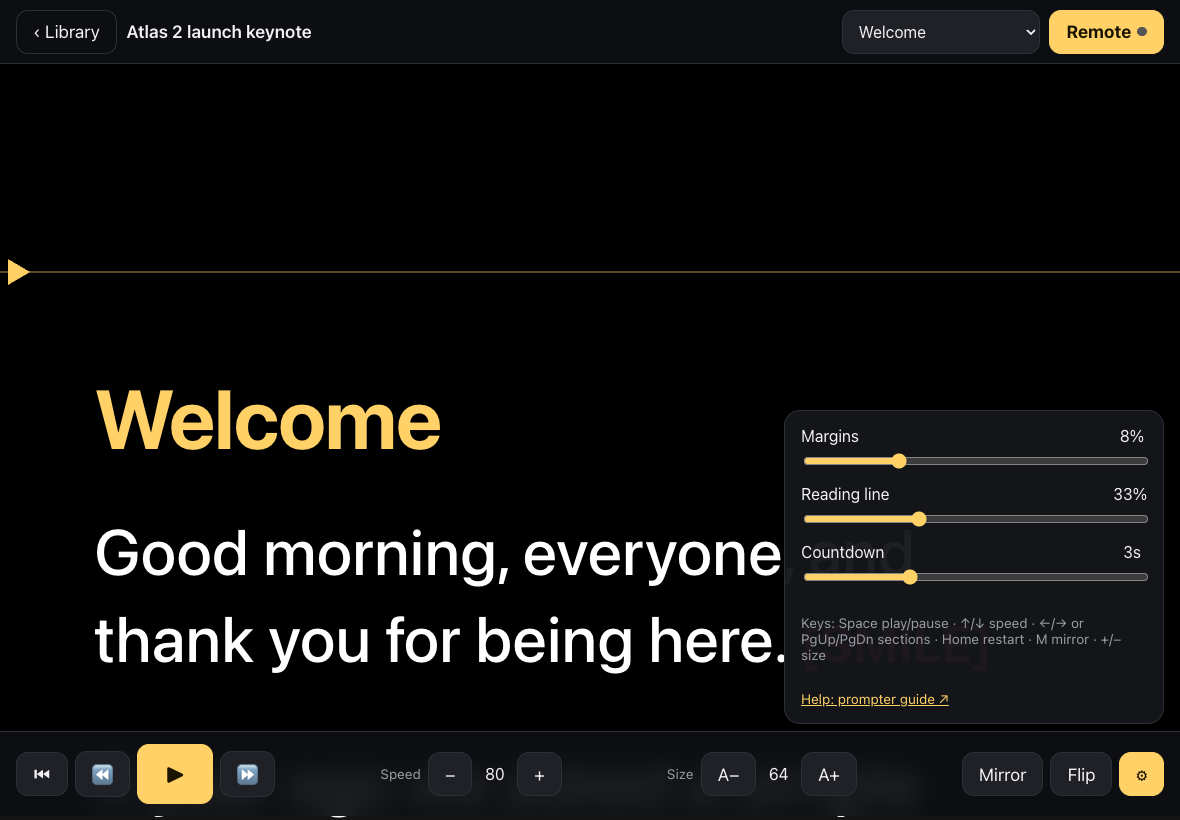
- Margins: empty space on the left and right, as a percentage of the width. Wider margins give shorter lines that are easier to read from further away.
- Reading line: how far down the screen the reading line sits. Around a third of the way down works well for most glass.
- Countdown: seconds of countdown before scrolling starts, or off.
Speed, text size, Mirror and Flip are in the bottom bar. All of these settings are remembered on the iPad.
Mirror mode for teleprompter glass
On a beam-splitter teleprompter, the iPad lies flat under the glass and you read its reflection. The reflection is reversed, so:
- Tap Mirror (or press M on a keyboard). The text is flipped left to right on the iPad, and reads normally in the glass.
- If the text also reads upside down in the glass, tap Flip too.
Keyboard and Bluetooth pedal shortcuts
A Bluetooth keyboard, or a page-turner pedal or clicker that types keys, works while a script is open:
| Key | Action |
|---|---|
| Space or Enter | Play / pause |
| ↑ / ↓ | Faster / slower |
| → or Page Down | Next section |
| ← or Page Up | Previous section |
| Home | Back to the top |
| End | Jump to the end |
| M | Mirror on / off |
| + / − | Larger / smaller text |
| Esc | Pause; press again to go back to the library |
Most page-turner pedals send Page Up / Page Down or the arrow keys, so one pedal moves to the next section and the other moves back. Pedals that send Space or Enter play and pause.