The phone remote
Use any phone (or a laptop) as a remote for the iPad: play, pause, speed, sections, text size and mirror. The remote talks to the iPad directly over your local network. Nothing you press goes through the Promptify server.
There are two ways to pair:
- Network (the usual one): the iPad and the phone are online. You scan one QR code with the phone's camera.
- Offline / QR: no internet at all. The phone scans the iPad's code, and then the iPad scans the phone's code.
Either way, both devices must be on the same Wi-Fi network (or the phone joined to the iPad's Personal Hotspot).
Pair over the network
On the iPad, tap Remote (in the library, or at the top of the prompter).
Leave it on Network. A QR code and a link appear.
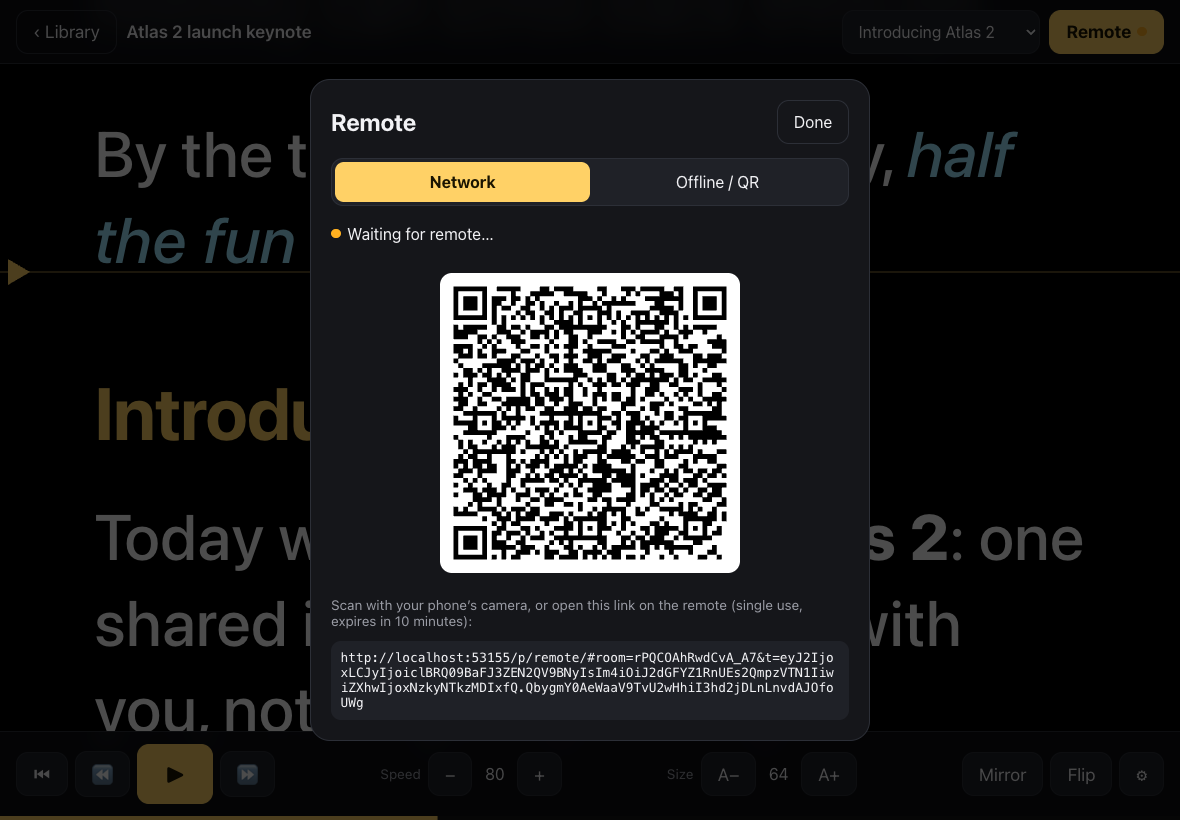
On the phone, open the Camera app and point it at the QR code. Tap the link that appears. (Or open the link on the phone some other way.)
The remote opens and connects. On the iPad, the status changes to Connected and the Remote dot turns green.
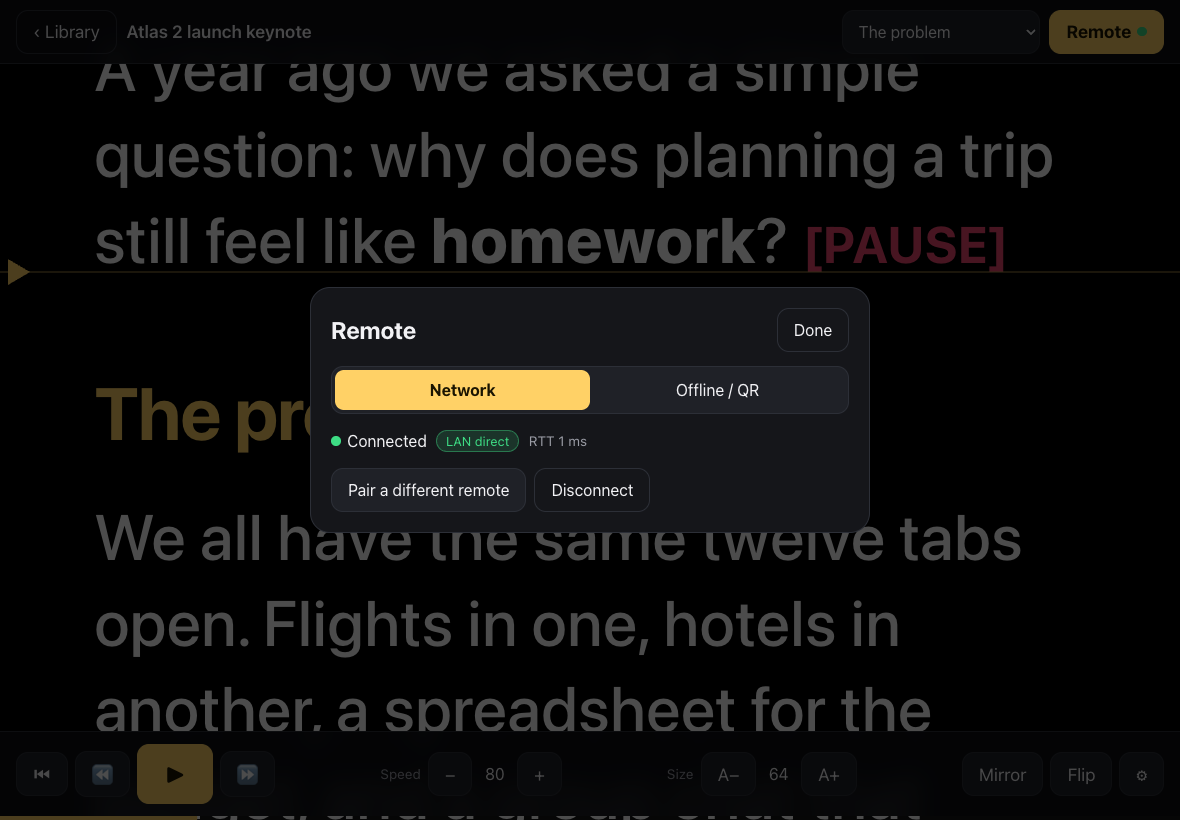
Tap Done on the iPad.
The link works once and expires after 10 minutes. If it doesn't work, tap Remote on the iPad again for a fresh code.
Pair with QR codes (no internet)
Do this once with internet first: open /p/remote/ on the phone, and optionally Add to Home Screen from Safari's Share menu. After that, the remote page loads even when the phone is offline.
On the iPad, tap Remote, then Offline / QR.
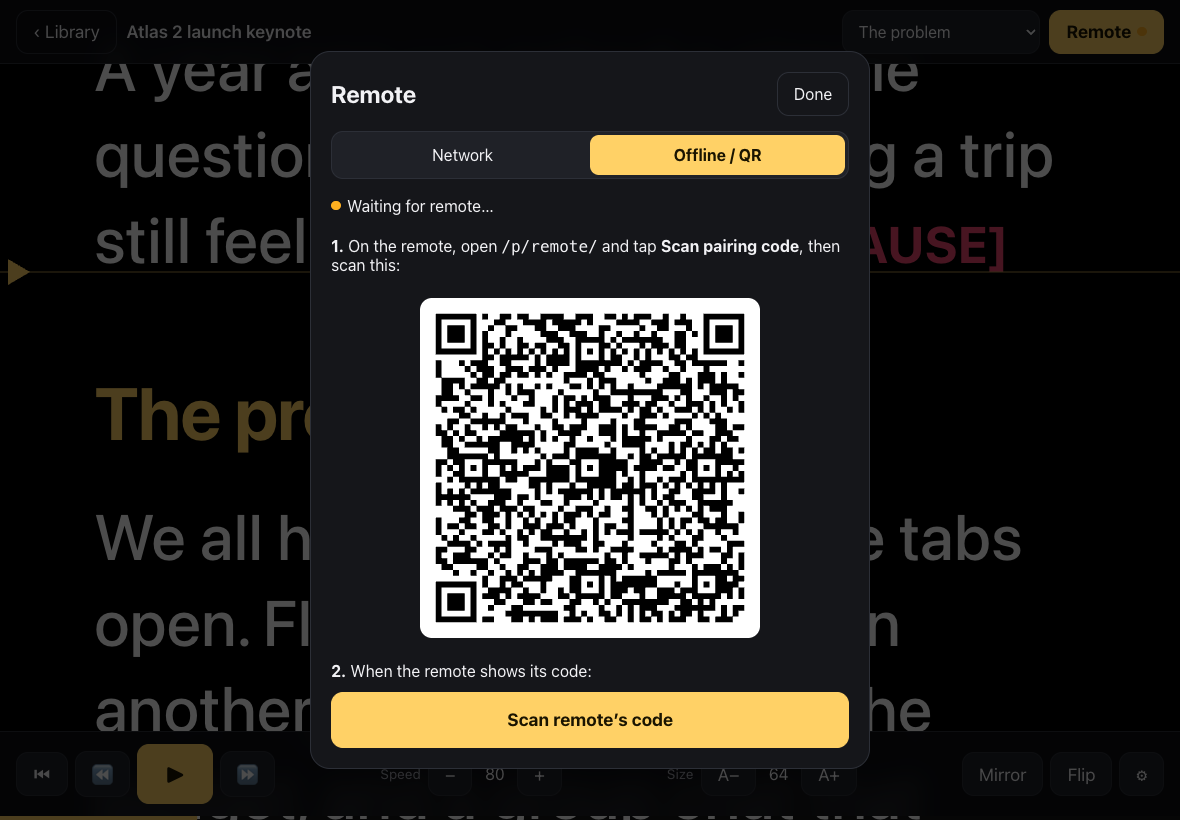
On the phone, open the remote (
/p/remote/) and tap Scan pairing code.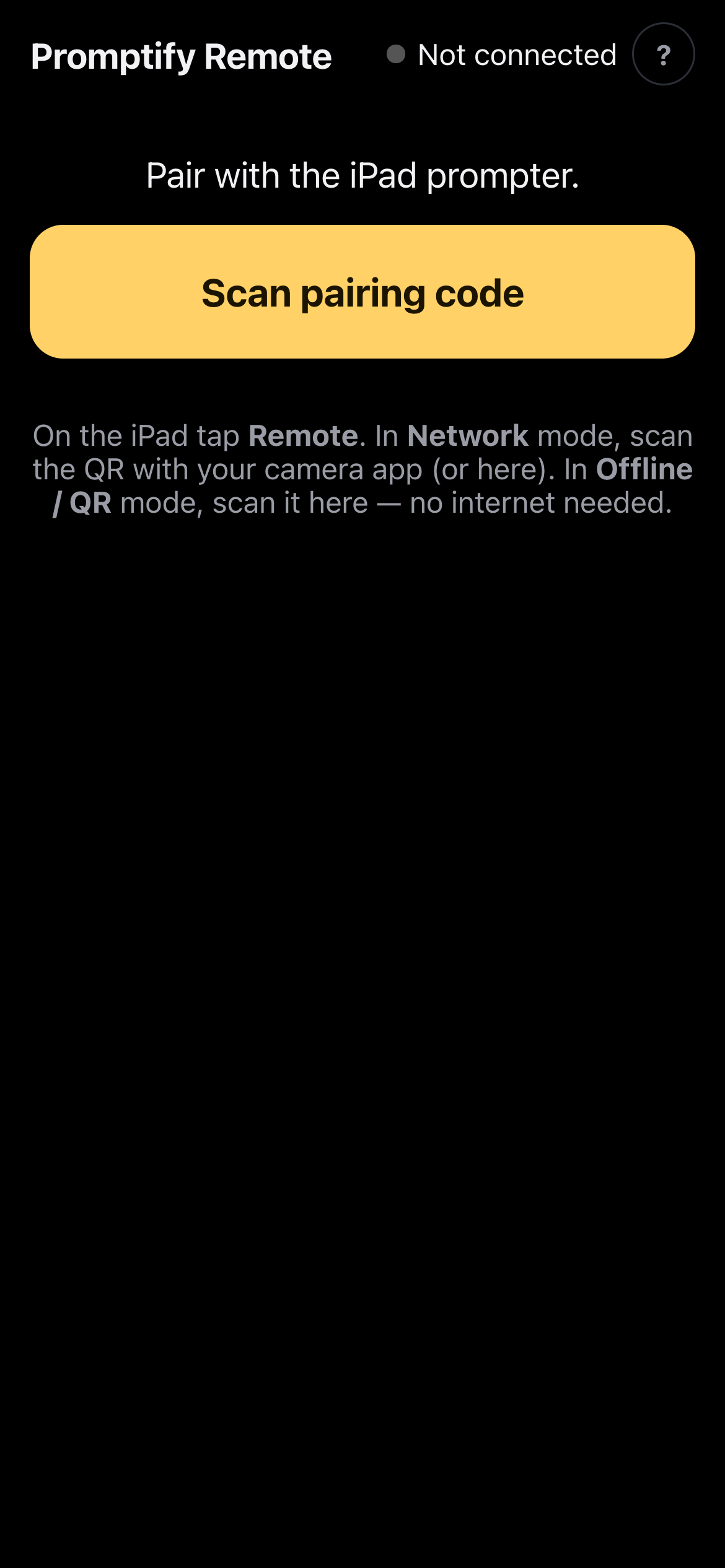
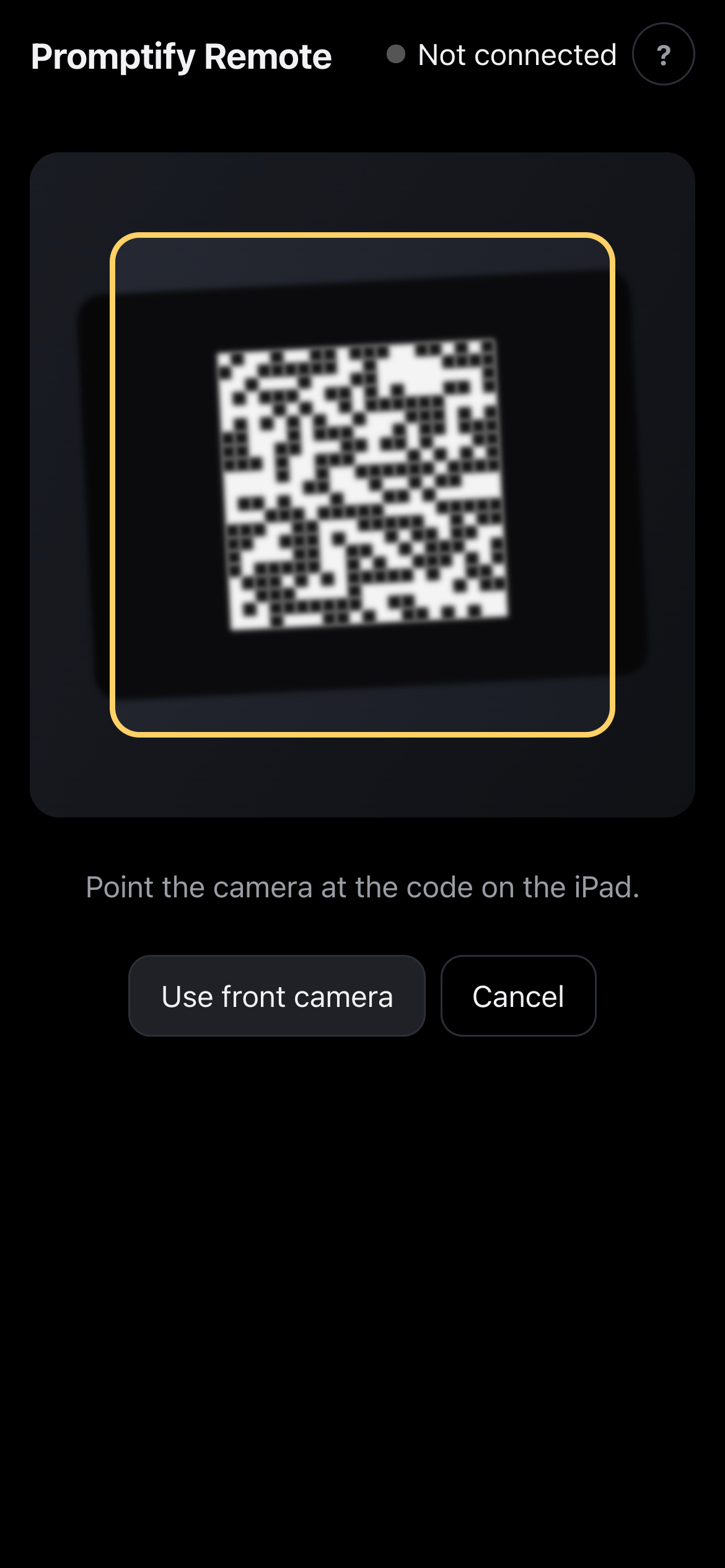
Point the phone at the code on the iPad. Allow camera access if asked.
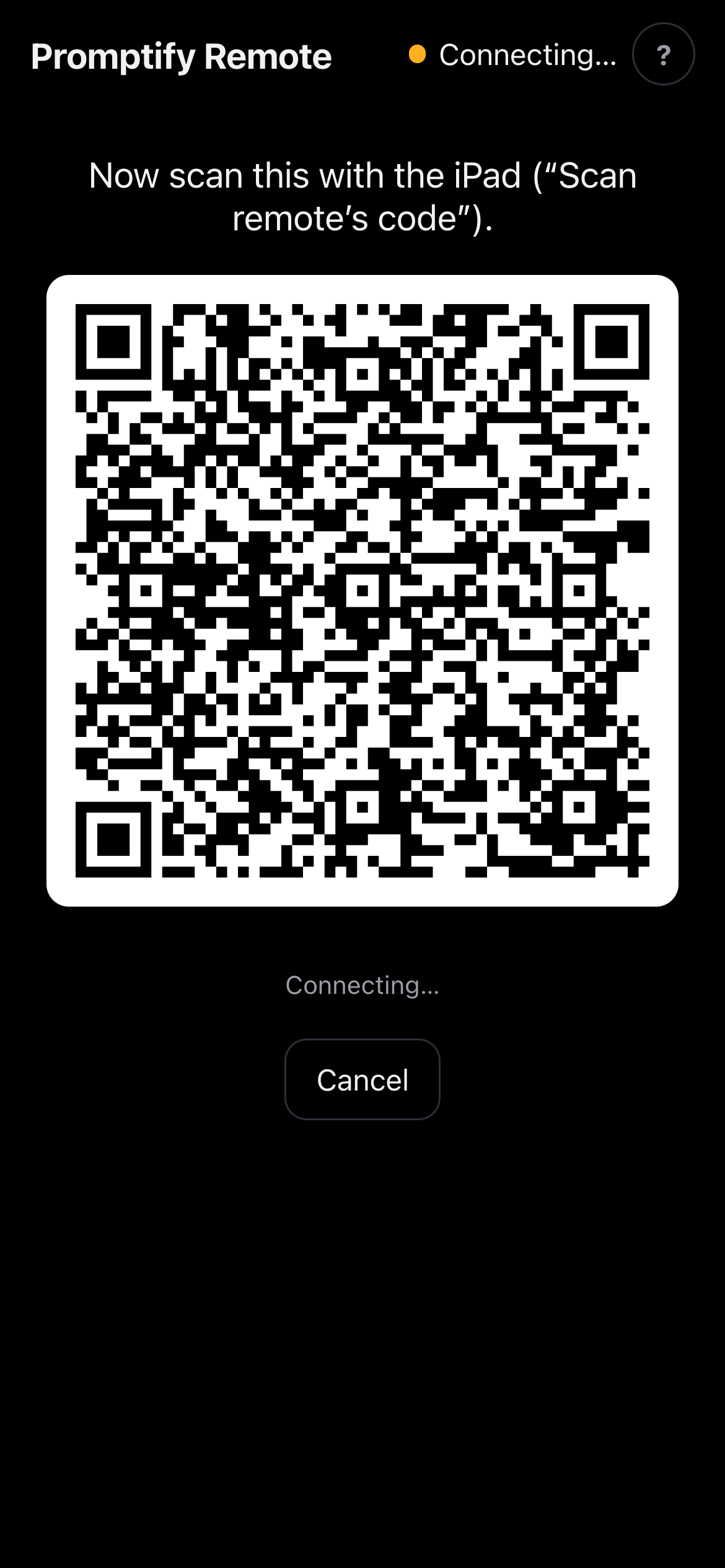
The phone now shows its own code. On the iPad, tap Scan remote's code and point the iPad's camera at the phone.
Both devices show Connected.
The phone's camera app can't read the Offline / QR codes: scan them from inside the remote with Scan pairing code.
The controls
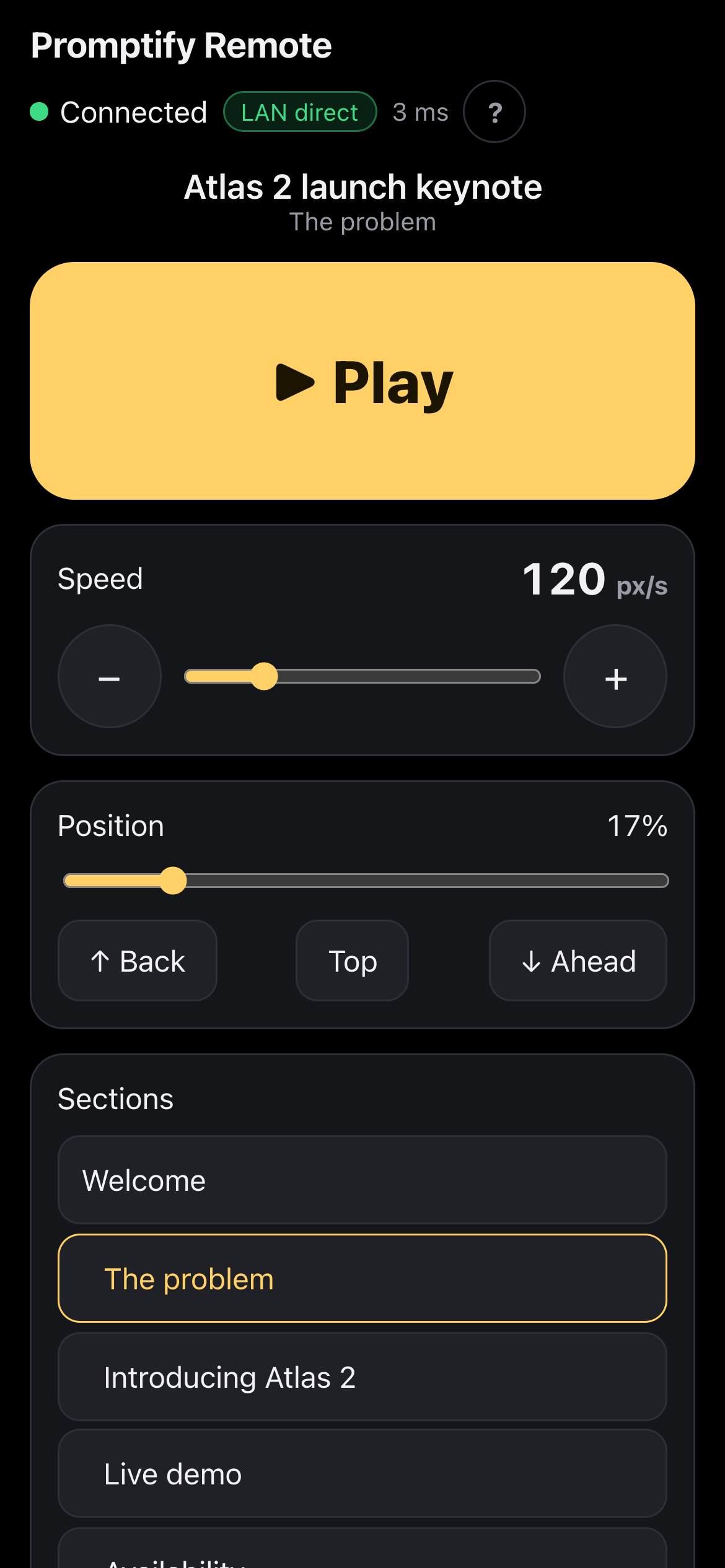
▶ Play / ❚❚ Pause: the big button at the top.
Speed: drag the slider or tap − / +. The number is the scroll speed in pixels per second, as reported by the iPad.
Position: drag to scrub through the script. ↑ Back and ↓ Ahead nudge the text a little; Top goes back to the start.
Sections: tap a heading to jump to it. The current section is highlighted.
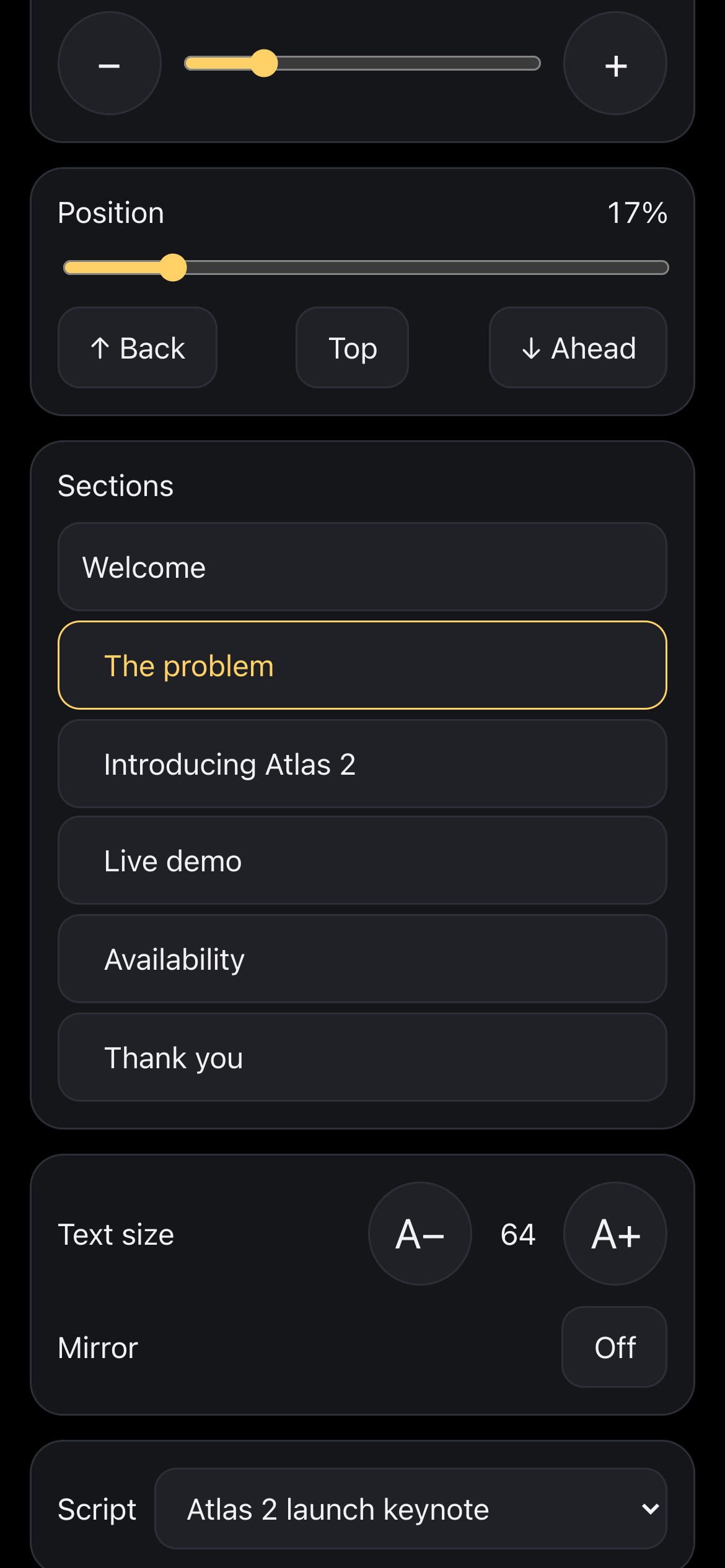
Text size: A− / A+.
Mirror: On / Off, for beam-splitter glass.
Script: open another synced script on the iPad.
The phone stays awake while it's connected, and it vibrates briefly when it connects (on phones that support it).
The status badges
At the top of the remote (and in the iPad's Remote panel):
- Connected, with a green dot: the link is up.
- LAN direct: the two devices are talking directly over the local network. This is what you want to see.
- … ms: the round-trip time between the devices. Under about 50 ms feels instant.
- Connection lost: the iPad stopped answering for a few seconds (for example, it went to sleep). The remote waits for it to come back; tap Re-pair to start again.
If pairing fails with "These devices can't reach each other on this network", see Troubleshooting.
To pair a different phone, or disconnect, open Remote on the iPad and tap Pair a different remote or Disconnect.