Importing scripts
Bring in a script you already have: a Google Doc, a Word file, Markdown or plain text. Each imported file becomes a new script that you can edit like any other.
Supported files: .docx, .md / .markdown, and .txt, up to 10 MB each.
From Google Docs
- In Google Docs, open the document and choose File → Download → Microsoft Word (.docx).
- In Promptify, drag the downloaded file onto the library page, or click Choose files… in the Import panel.
- When it's done, click Open "…" next to the file name.
Headings, bold, italics and lists come across. Use Docs' heading styles (Heading 1, Heading 2) for the parts of your talk, and they become sections. The script title comes from the first heading (the Docs Title style counts), or from the file name if there is no heading.
Drag and drop
- Drag one or more files from Finder (or your desktop) anywhere onto the Scripts page.
- When the page shows Drop to import, let go.
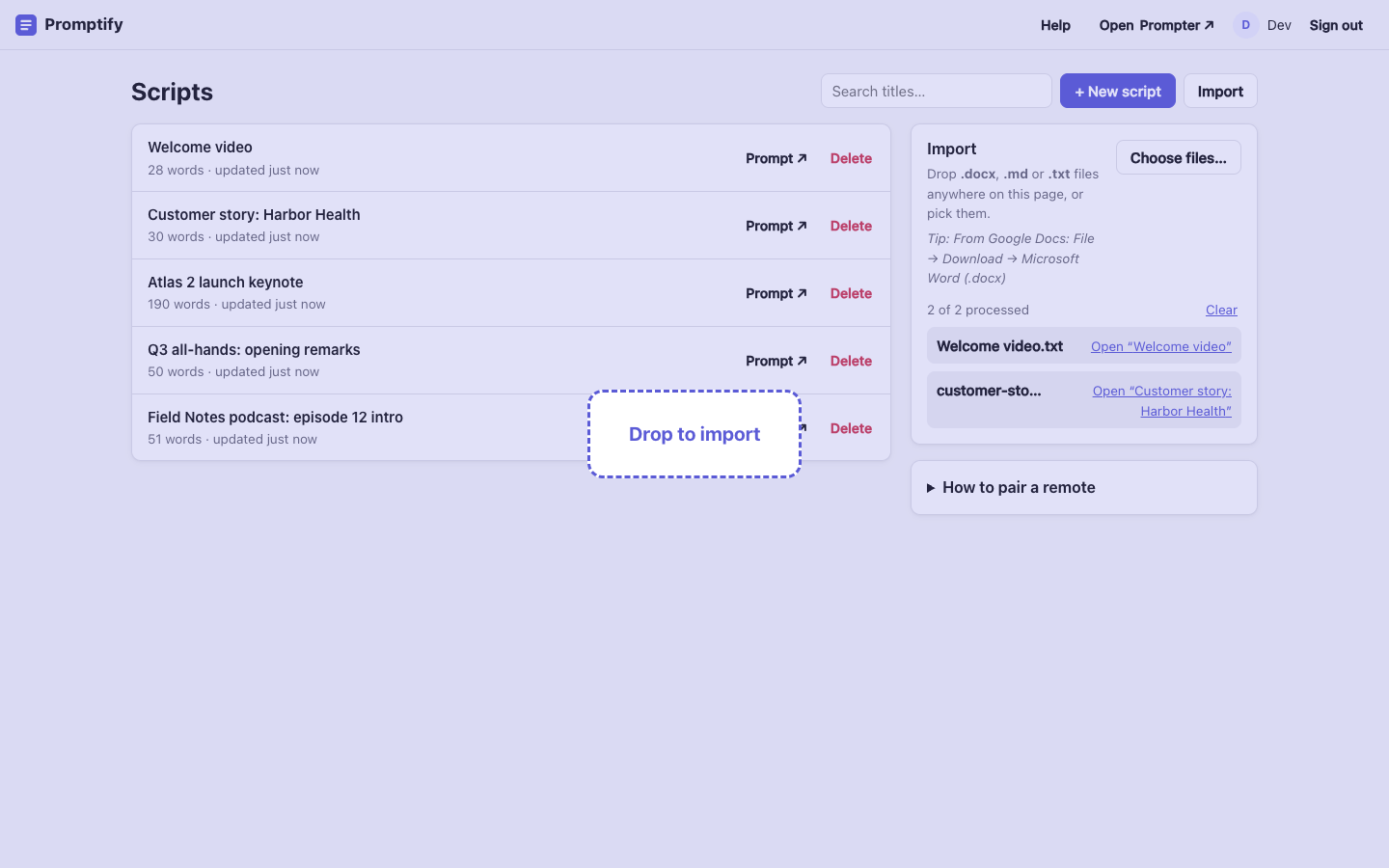
Files upload one at a time. Each one shows its progress, then an Open "…" link to the new script. Any notes from the conversion (for example, "1 image was dropped": the prompter shows text only) are listed under the file with a ⚠.
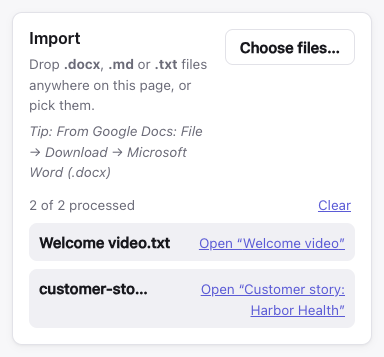
You can also click Import at the top of the library, or Choose files… in the panel, and pick several files at once. Click Clear to empty the list when it's finished.
Markdown and text files
- .md / .markdown files are used as they are. Write cues as
[PAUSE]and headings as#/##, as described in Writing scripts. - .txt files: each blank-line-separated block becomes a paragraph, and single line breaks are kept.
Replace a script's text from a file
If you edited the source document again, re-import it into the same script instead of creating a new one:
- Open the script in the editor.
- Click Replace from file in the toolbar and choose the updated file.
- Confirm. The script text is replaced, and the banner says Replaced from "…".

The title and the script's place in the library stay the same, and synced iPads pick up the new text on their next sync. If the script was changed somewhere else in the meantime, Promptify doesn't import. Instead it shows the conflict banner: click Load latest, then import again.