Troubleshooting
Fixes for the most common problems: the remote can't connect, the camera won't open, sign-in in the installed app, and scripts that look out of date.
The remote can't reach the iPad
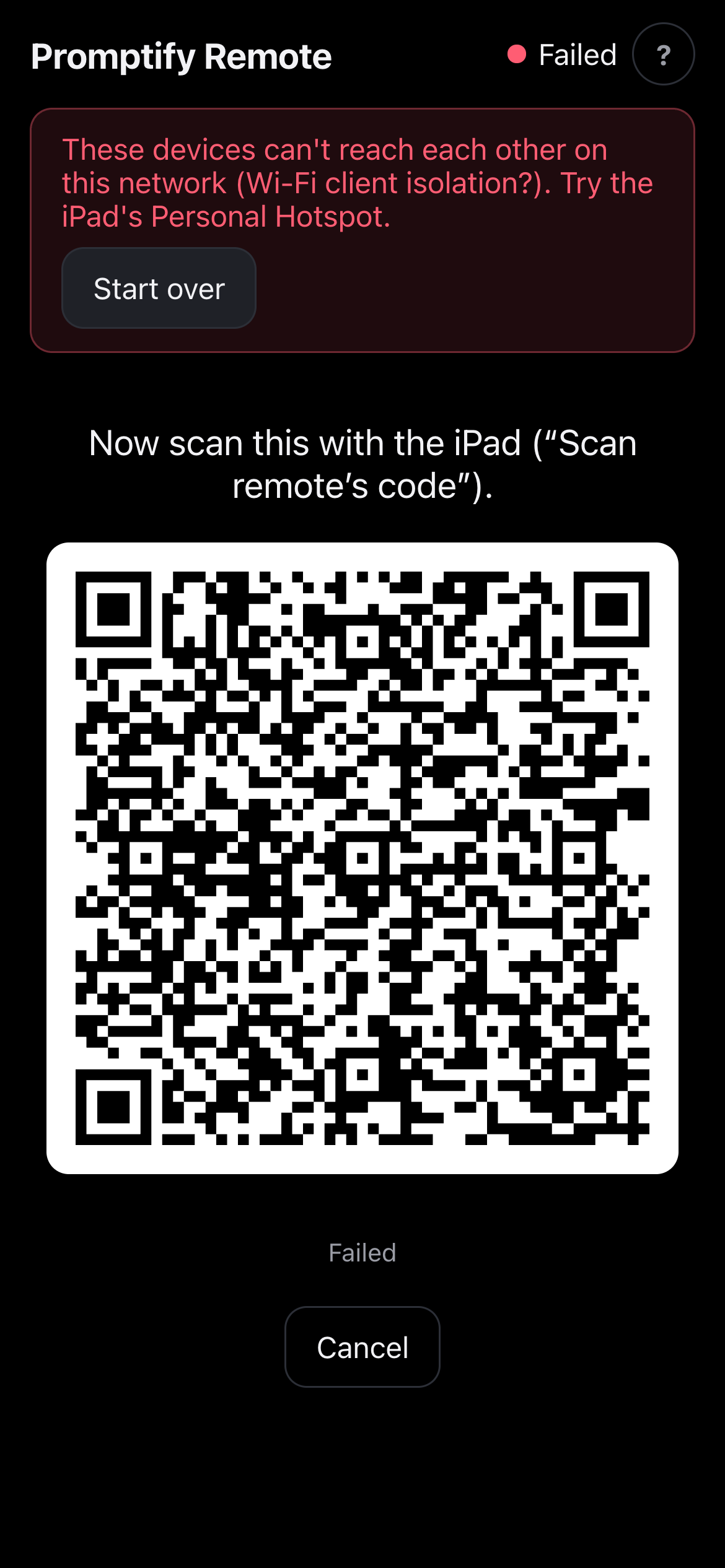
The remote connects to the iPad directly over the local network. Many guest, hotel, conference and office Wi-Fi networks block devices from talking to each other ("client isolation"), and then pairing fails with These devices can't reach each other on this network.
Use the iPad's Personal Hotspot instead:
- On the iPad, open Settings → Personal Hotspot and turn on Allow Others to Join. (This needs an iPad with cellular. Otherwise, use a phone's hotspot and join both devices to it.)
- On the phone, join the iPad's hotspot in Settings → Wi-Fi.
- Pair again. With no internet on the hotspot, use Offline / QR pairing.
Also check:
- Both devices are on the same network, not one on Wi-Fi and one on cellular.
- A VPN on either device can get in the way. Turn it off while you pair.
- "This pairing link didn't work": network pairing links work once and expire after 10 minutes. Tap Remote on the iPad for a new code.
The camera doesn't open
The QR scanner in the remote (and Scan remote's code on the iPad) needs camera access.
- "Camera permission denied": allow the camera for the site. On iPhone and iPad, go to Settings → Apps → Safari → Camera and choose Ask or Allow (older iOS versions: Settings → Safari → Camera). Then tap Start over and scan again.
- "Camera needs HTTPS (or the installed app)": the page was opened over plain
http://. Open thehttps://address. - If the rear camera can't focus on a nearby screen, tap Use front camera, or move the phone a little further back.
- Network pairing doesn't need the remote's scanner at all: scan the iPad's code with the phone's Camera app.
Sign-in in the installed app
An app added to the Home Screen keeps its own sign-in, separate from Safari. Signing in to Safari doesn't sign in the app, and the other way around.
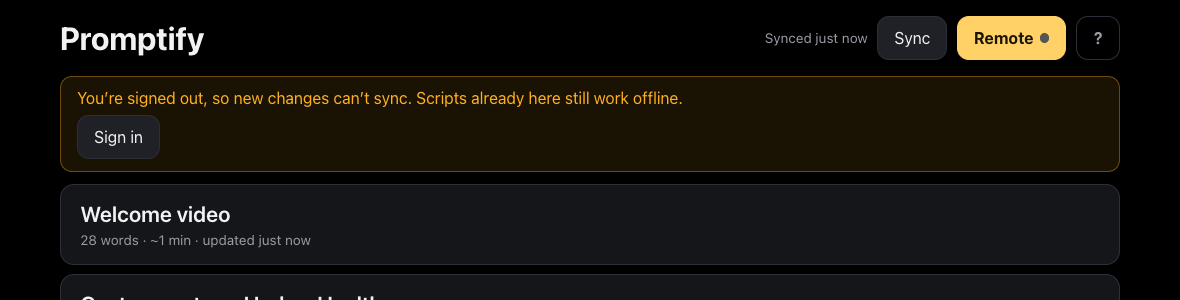
- If the prompter shows You're signed out, tap Sign in in the app and finish the Google sign-in. You come back to the library, and it syncs.
- Scripts already on the iPad keep working while you're signed out. Only new changes can't sync.
- On the very first launch with no scripts yet, the app goes straight to sign-in.
- Sign-in sessions last for days, but they do expire. Open the app and check that it syncs on the day before an event, not just before you go on stage.
The prompter shows an old version of a script
The iPad shows its own copy of each script, from the last sync.
- In the editor, check that the script says Saved (not Unsaved changes or Offline — will retry).
- On the iPad, go back to the library (‹ Library) and tap Sync. Synced just now means it's up to date.
- If Sync is greyed out and an Offline badge shows, the iPad has no connection. Connect to Wi-Fi and tap Sync.
- If a sync fails, the library shows Sync failed with the reason. If it says you're signed out, see Sign-in in the installed app.
The prompter also syncs by itself when it opens, when you switch back to it, and when it comes back online.
After an update to Promptify itself, the installed app picks up the new version the next time it's opened. If something looks stale, close the app completely (swipe it away in the app switcher) and open it again.
Still stuck?
- Re-pair from scratch: tap Start over on the remote, and Remote → Pair a different remote on the iPad.
- Reload the prompter: close the app completely and open it again. Your scripts and settings stay on the iPad.